How to Annotate and Highlight AI Chat Responses (ChatGPT, Claude, Gemini)
You Read AI Responses. But Do You Remember the Key Parts?
If you're like most people, you have dozens of AI conversations every week. ChatGPT helps you draft emails. Claude analyzes your code. Gemini researches market trends.
But here's the problem: the moment you close the tab, the details fade.
Sure, you can save the entire conversation. But a saved chat is a wall of text. What about the one paragraph that actually mattered? The insight that changed your approach? The code snippet you want to revisit?
You need a way to mark what matters — right inside the conversation.
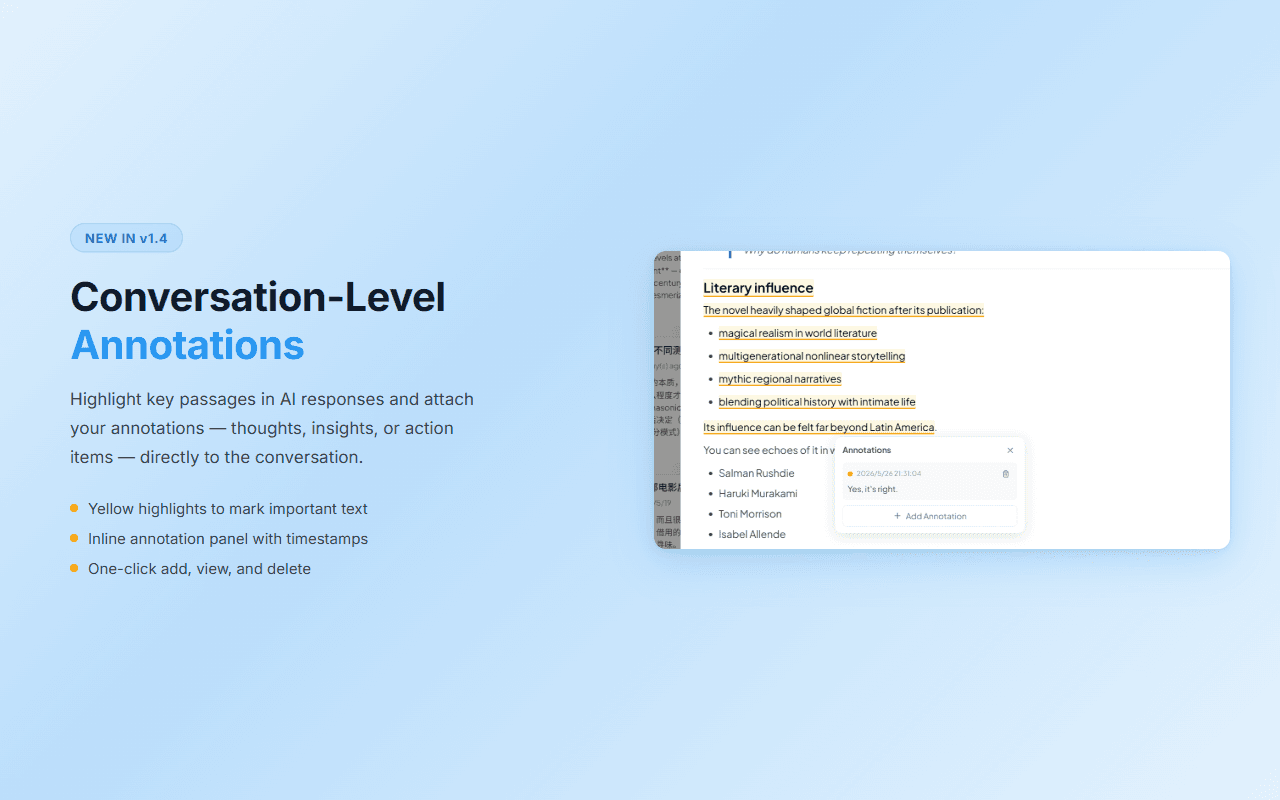
Introducing Annotations in LogiSyncAI v1.4
LogiSyncAI now lets you highlight any text in an AI response and attach your own annotations — directly inside ChatGPT, Claude, and Gemini.
No copy-pasting to a separate notes app. No screenshots. No context switching.
It works in three seconds:
- Select any text in the AI's response
- Right-click and choose "Add Annotation"
- Write your note, pick a highlight color, and save
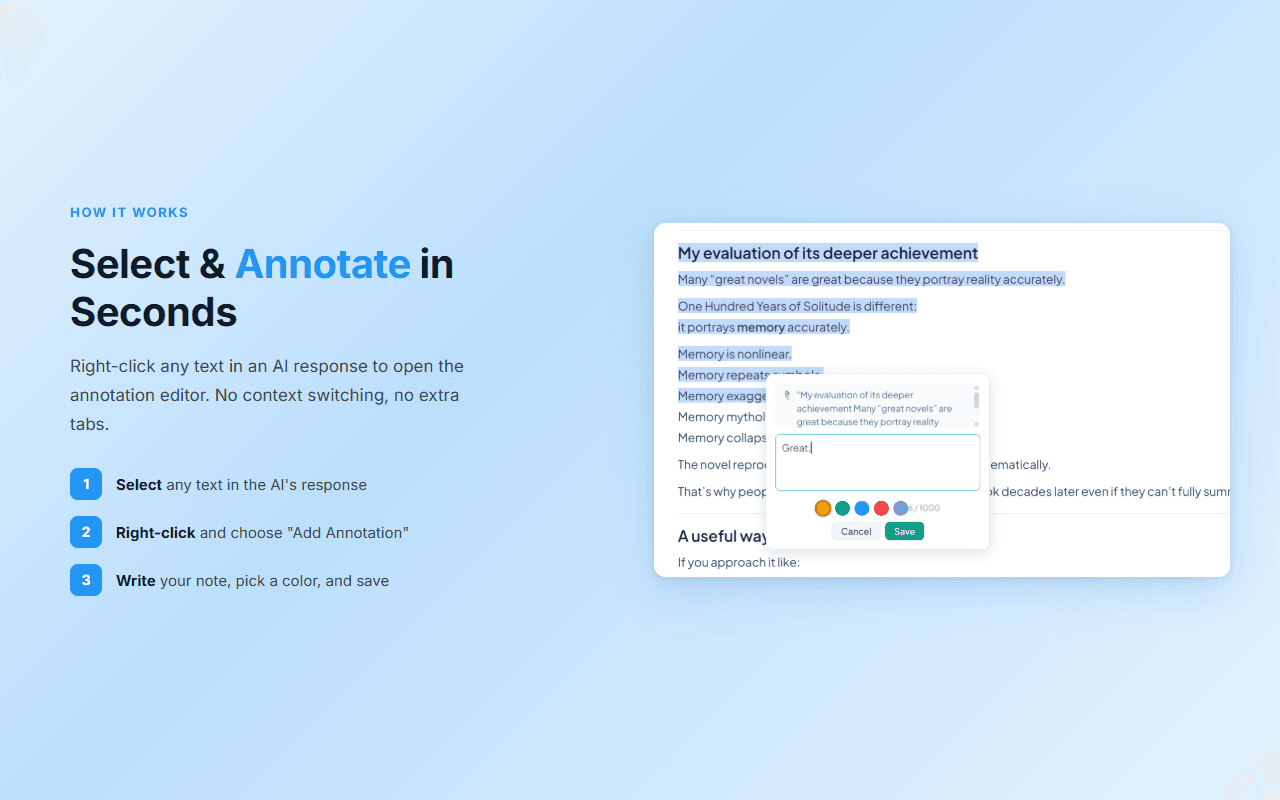
Your annotation is saved alongside the conversation. Next time you revisit that chat, your highlights are right there — with your notes attached.
Five Colors to Organize Your Thinking
Not all annotations are created equal. That's why LogiSyncAI gives you five distinct highlight colors to categorize your insights:
- Yellow (Important) — Flag must-remember passages
- Green (Insight) — Mark "aha" moments and new ideas
- Blue (Reference) — Tag content you'll want to cite later
- Red (Action Item) — Highlight things you need to do
- Purple (Question) — Flag parts that need more thought
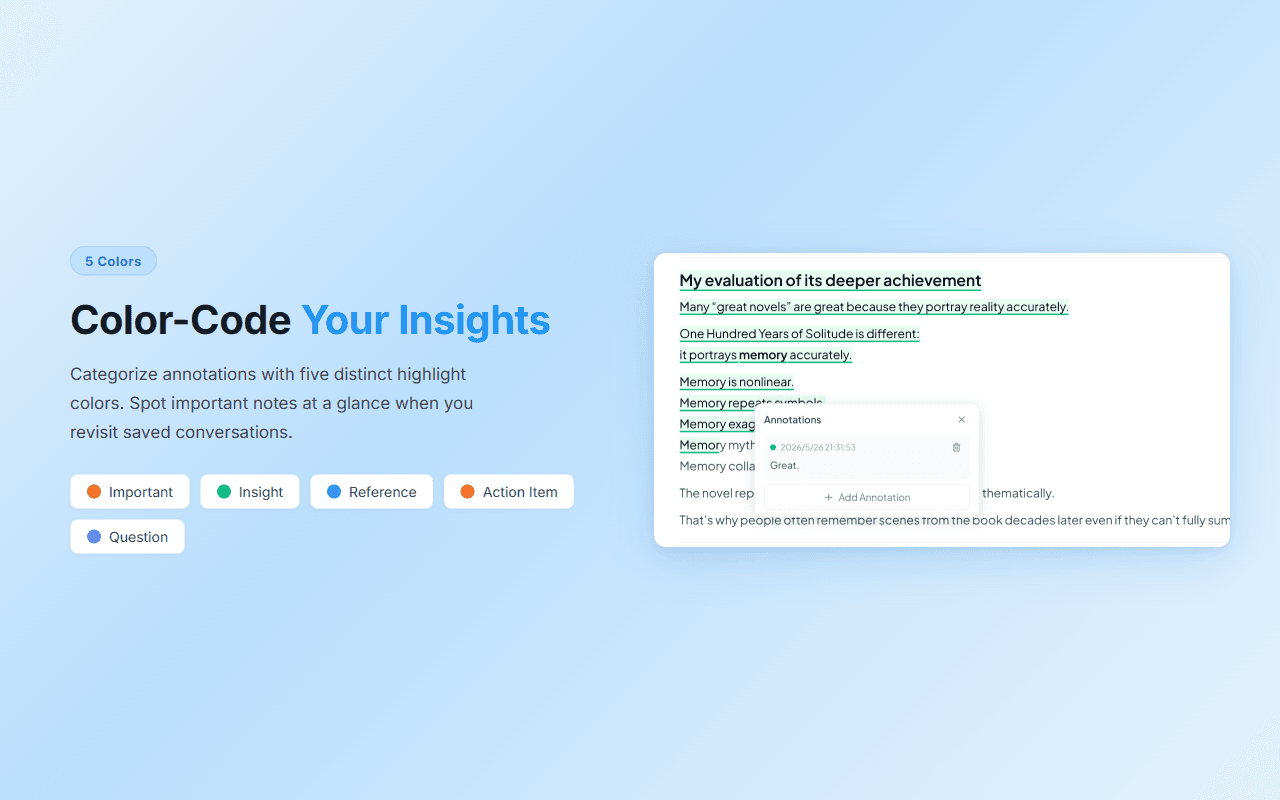
When you revisit a saved conversation weeks later, these color-coded highlights let you scan and find what matters in seconds — instead of re-reading the entire chat.
Notes: Your Personal Space Within Every Chat
Sometimes you need more than a highlight. That's where Notes come in.
Notes are freeform text you can attach to any saved conversation. Use them to:
- Summarize a long conversation in your own words
- Capture takeaways before they fade from memory
- Track follow-up tasks you want to act on later
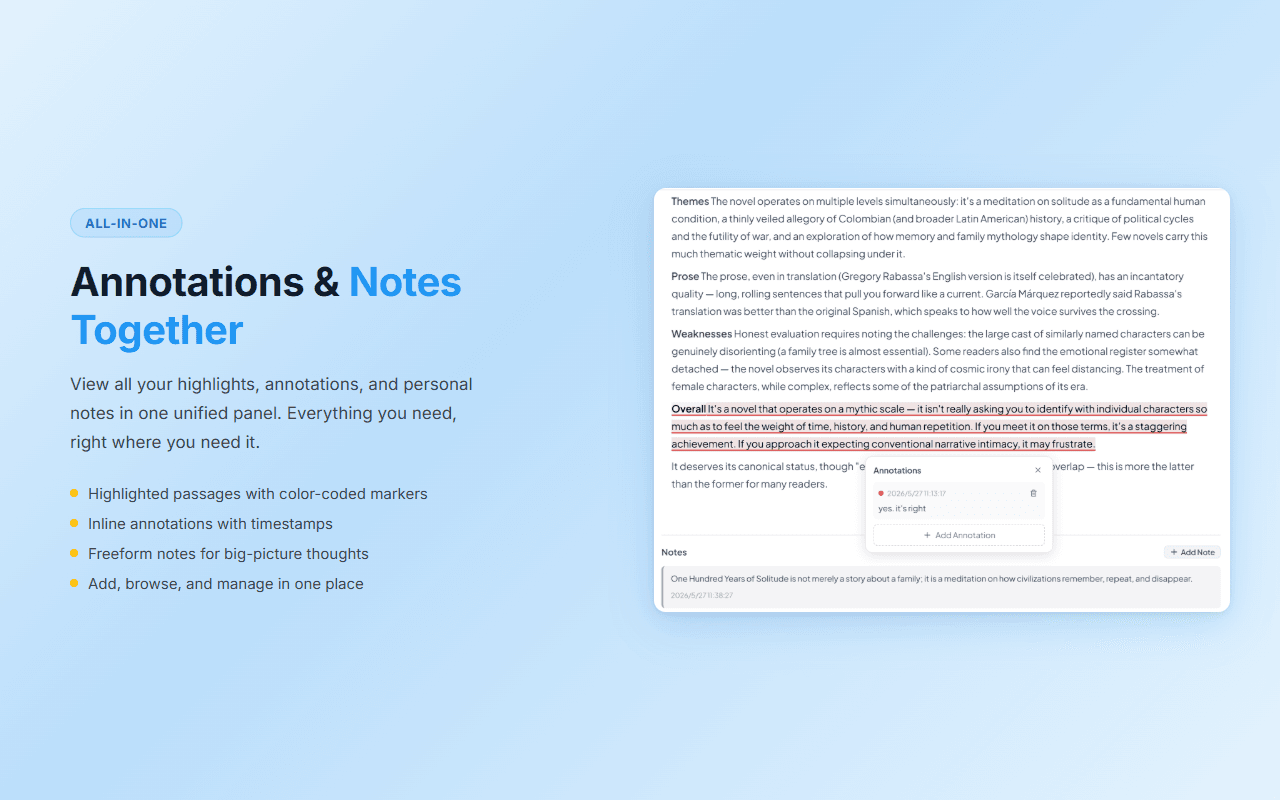
Notes live right alongside your annotations in a unified panel — highlights, annotations, and notes, all in one place.
Real-World Use Cases
For Developers
Highlight the code explanation that actually made sense. Annotate it with "Use this pattern for the auth module." When you're implementing that module two weeks later, your past self already left you a guide.
For Researchers
Mark key findings across multiple AI research sessions. Color-code by theme — green for methodology insights, blue for references to follow up on, red for action items.
For Writers and Content Creators
Highlight the AI-generated phrasing you liked. Add a note: "Use this angle for the blog intro." Your annotations become a personal writing reference library.
For Students
Annotate AI tutoring sessions. Highlight the explanation that finally clicked. Add your own rephrasing as a note. You're building a personalized study guide without extra effort.
Everything Stays Local and Private
All annotations and notes are stored locally in your browser. Nothing is sent to any server. Your thoughts, your highlights, your data — always under your control.
Annotations are also included when you export conversations as Markdown, so your insights travel with your content into Obsidian, Notion, or any other tool you use.
Getting Started
- Install LogiSyncAI from the Chrome Web Store (free)
- Open any conversation in ChatGPT, Claude, or Gemini
- Select text in an AI response, right-click, and choose "Add Annotation"
- Write your note, pick a color, and save
That's it. Your AI conversations just became a searchable, annotated knowledge base.
LogiSyncAI is a free browser extension that helps you save, organize, annotate, and export AI conversations from ChatGPT, Claude, and Gemini. All data stays local in your browser. Install it free.